
Student Instructions
STEP 1: Access the PayMyTuition Portal
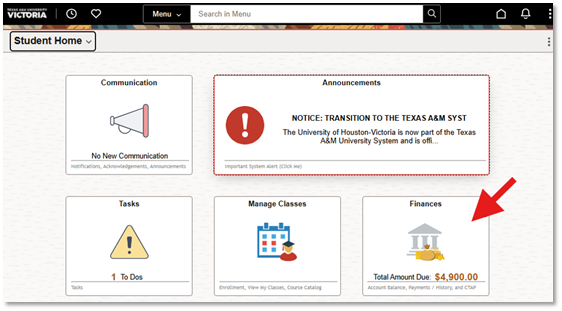
Log into myUHV portal. Upon signing in, select "Finances" tile:
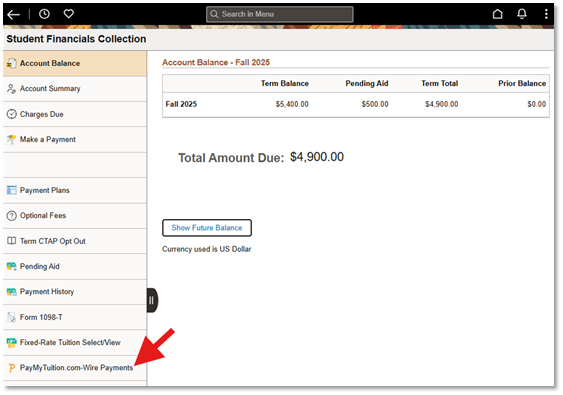
From the navigation panel, select "PayMyTuition.com-Wire Payments":
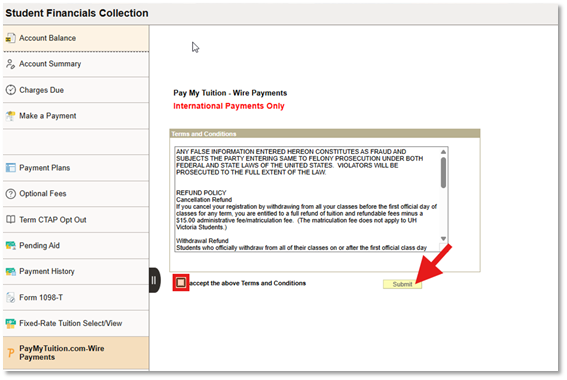
Next, accept the Terms and Conditions and click "Submit" to the redirected to the PayMyTuition portal:
Step 2: Register for an Account with PayMyTuition
Upon redirecting into the PayMyTuition portal, select Create Profile and click the Register button.
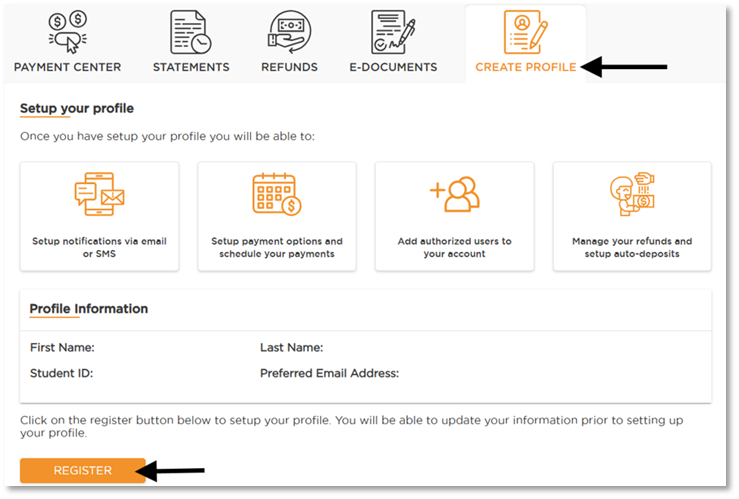
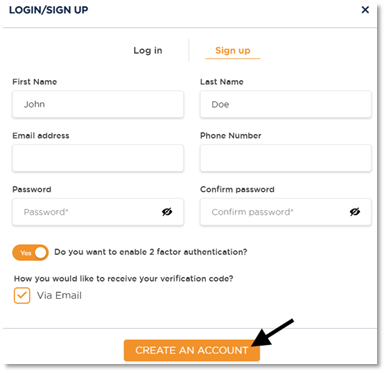
Complete your profile information and click Create an Account.
Be on the look out for an email from PayMyTuition confirming your profile has been created.
Step 3: Add Your Authorized User
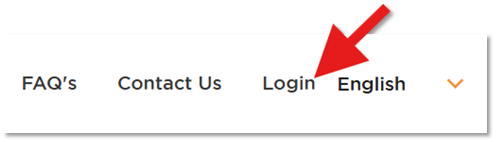
Within the PayMyTuition, login to your PayMyTuition account.
Select the My Profile section and click Authorize User List at the bottom of the page. Select Add New.
Your authorized user will receive an email from PayMyTuition requesting they register as a user.
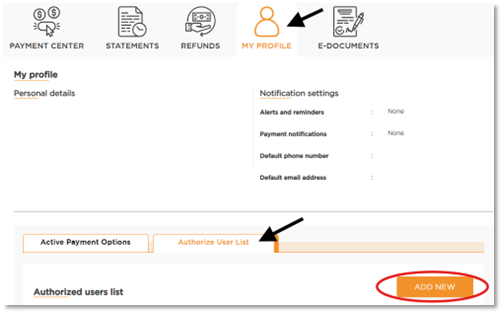
Students can track the status of their authorized user request, edit authorized user details, delete the authorized user from their account, and resend the email link for registration within their Authorized user list dashboard.

Authorized User Instructions
Step 1: Complete Your Profile Registration
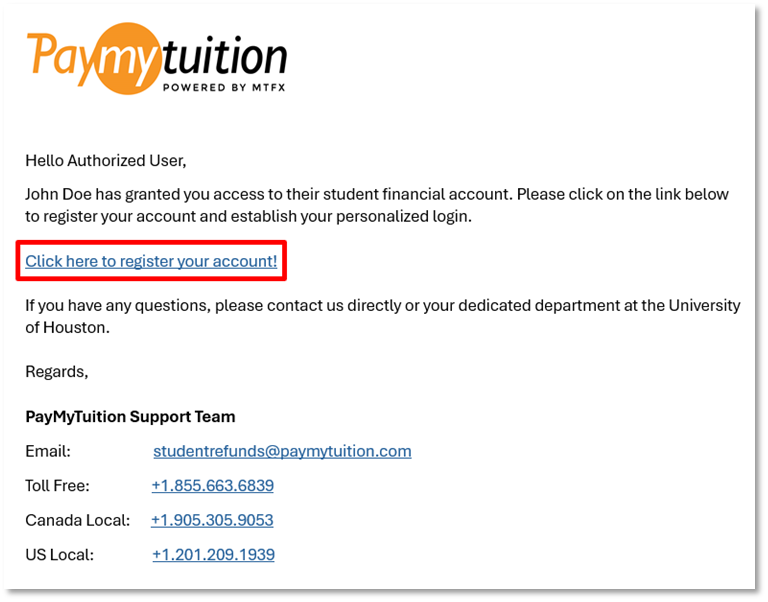
The authorized will receive an email from PayMyTuition with a request for an account. Click on the link within the email to complete your account setup.
Step 2: Access Your PayMyTuition account as an Authorized User
To access your students' PayMyTuition account as an Authorized User, login at the PayMyTuition portal.
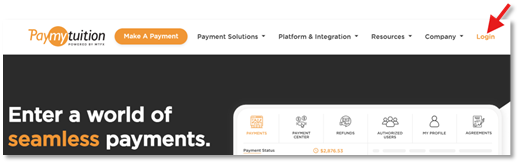
Input your email address and password and click Login to access the students' Payment Center to action on payments.